
Alt Mode USB-C Cable: DP, HDMI and Thunderbolt
USB-C specifications can look simple on a product page, but procurement decisions are rarely simple. USB-C technology from our China factory covers the options that sit either side of this part. Power rating, data rate, connector orientation, cable length and device compatibility all interact. This guide gives buyers a practical way to compare high-speed USB-C cable options without relying on a single headline number. For Alt mode USB-C cable orders, Eilinks Eletronics in China works from the drawing.
Alt mode USB-C cable choices follow the same checks as the rest of the build.
What buyers should confirm first
In a real installation, a high-speed USB-C cable may be pulled through furniture, mounted inside a panel, connected behind a display, handled by many users, or left in place for long service periods.
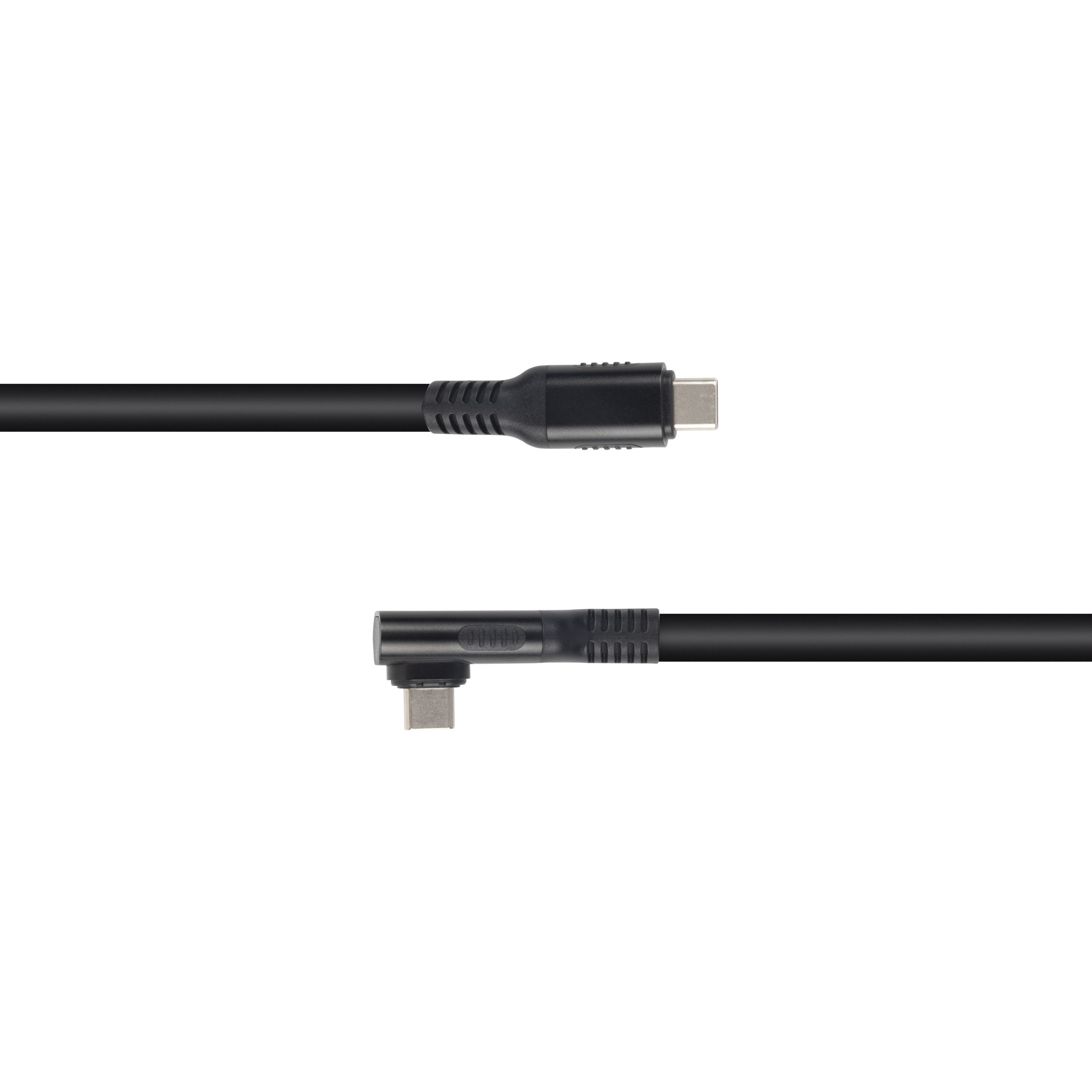
Those details matter. A product that works on a desk can still be the wrong choice for alt mode : displayport, hdmi, and thunderbolt if the connector direction, jacket stiffness or length tolerance is not suitable. Where a run has to be repeatable, our USB 3.0 keystone is the working reference.
If you are comparing options on the USB-C product catalog, start by separating must-have requirements from nice-to-have features. A reliable RFQ usually includes the device type, target speed, charging requirement, length, connector orientation, expected use environment and any OEM packaging or labeling needs. Dongguan Eilinks ships from China, and documents Alt mode USB-C cable details on the order record.
Selection checklist for Alt Mode : DisplayPort, HDMI, and Thunderbolt
Where this choice usually affects reliability
The most common problems are not always dramatic. Many failures come from a connector that is forced into a tight space, a cable that is bent too sharply, a run that is longer than the device can tolerate, or a specification that was copied from a similar project without checking the actual hardware.

For alt mode : displayport, hdmi, and thunderbolt, buyers should think about installation, service access and replacement cost as early as they think about unit price. Panel builders often start from our usb extension when clearance is tight.
For example, products such as Double side 20G USB C extension adapter and 240W 20G Type C USB C Female in Moulder Keystone Jack Double side 20G show the kind of connector and performance details that should be reviewed before the final quote. Eilinks’ build file answers that. When the application needs another format, compare it with USB3.2 5Gbps USB A To C Female Photography Tools Cable or ask for a recommendation based on the end use.
Mistakes worth avoiding
Questions to include in the RFQ
- What device or system will this high-speed USB-C cable connect? Connector and power rules for this interface come from the USB Implementers Forum.
- What data rate and power level are actually required?
- What length, connector direction and jacket flexibility are needed?
- Will the cable be moved often, fixed inside equipment, or exposed to public handling? Anyone planning a batch order should look at USB-C Extension Cable manufacturer for equipment integration first.
- Do you need OEM/ODM details such as color, logo, packaging, connector molding or special length?
Practical sourcing note
A good supplier conversation should be specific.
| Item to confirm | Why it matters for buyers |
|---|---|
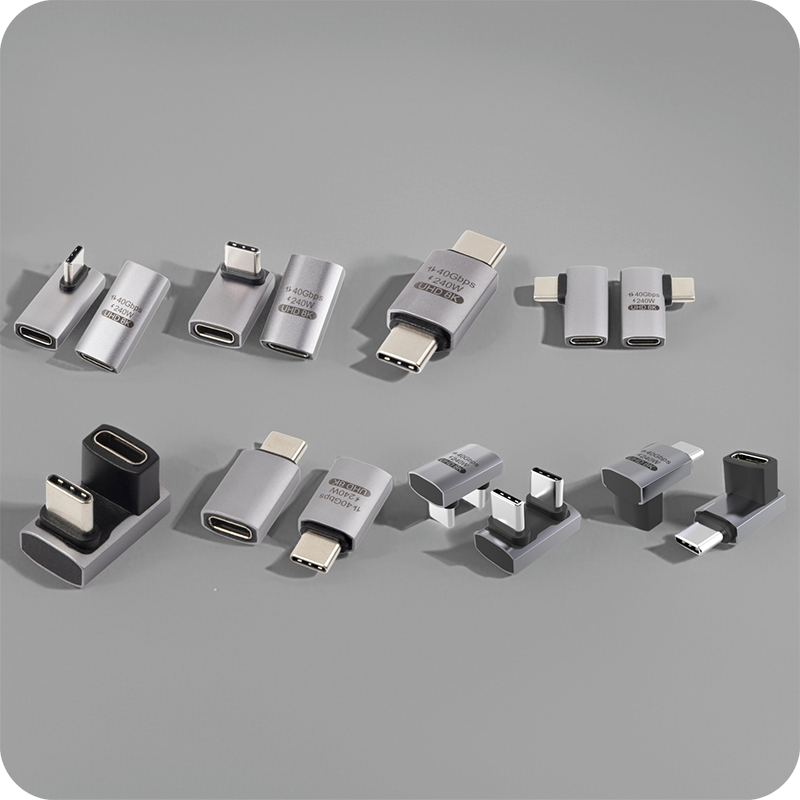
| Connector and orientation | Confirm USB-C male/female direction, straight or right-angle layout, panel-mount or adapter format, and whether the connector housing has enough clearance in the final device. |
| Data requirement | Match the cable to the real device speed, such as USB 2.0, USB 3.x, 5Gbps, 10Gbps, 20Gbps or higher-speed USB-C applications. Do not buy a faster label if the installation needs a different physical design. |
| Power requirement | Check the expected charging wattage, current path, conductor design and temperature rise. Treat 240W or high-current claims as items to verify, not decorative copy. |
| Length and routing | Review total cable length, bend radius, repeated movement, strain relief and whether the cable will be routed through a wall plate, kiosk, camera rig, cabinet or machine. |
| Evidence before bulk order | Ask for specification sheets, drawings when needed, sample approval, packing details and any test information that is relevant to the application. |
- List the connector genders.
- Name the host and device generation.
- Confirm the power level separately.
- Keep the sample note with the order.
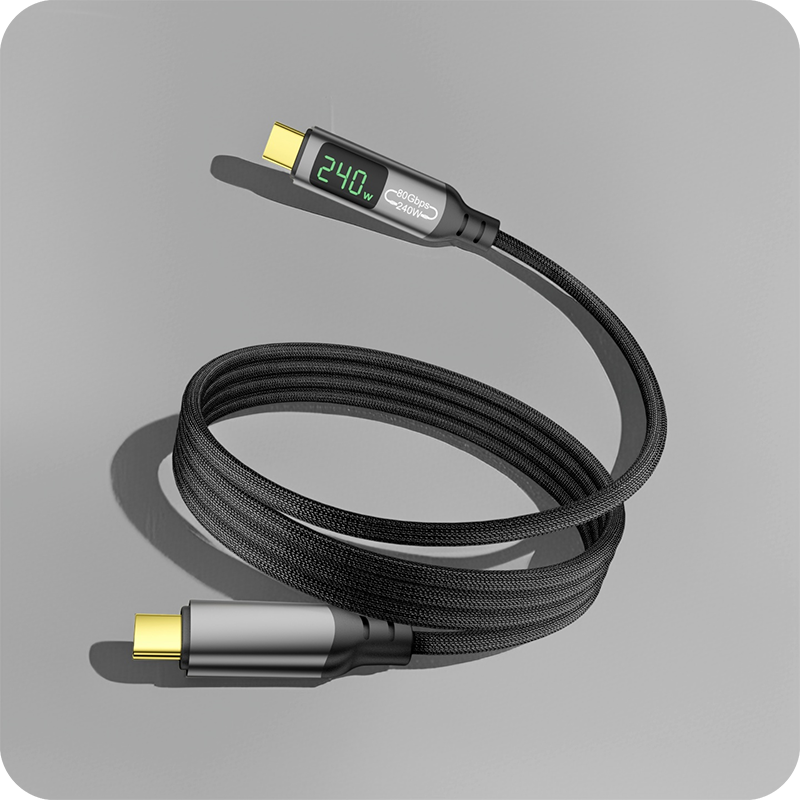
Share the device model if possible, the required length, the desired connector direction, the charging or data expectation, and any installation limits. 240W USB-C cable lists what can be quoted as a moulded assembly at this length.
| Item | Mistakes worth avoiding |
|---|---|
| 1 | Choosing by price before confirming connector direction and installation space. |
| 2 | Assuming every USB-C cable supports the same power and data features. |
| 3 | Using consumer desk assumptions for embedded, public-facing or industrial installations. |
| 4 | Skipping sample approval before ordering for a new project. |
- State the mating pair on the drawing.
- Confirm the exit direction of the plug.
- Quote the data rate at the ordered length.
- Ask for the jacket and overmould in writing.
That lets the manufacturer confirm whether a standard item is suitable or whether an OEM/ODM version is a better fit.
For a project quotation, review the product catalog and then send the application details through the contact page. Buyers can contact the Dongguan factory team when the drawing is unclear. Keep the first discussion focused on the real operating conditions rather than only the headline speed or wattage. Eilinks in China answers Alt mode USB-C cable questions from the same inspection sheet that ships with the cable.
