
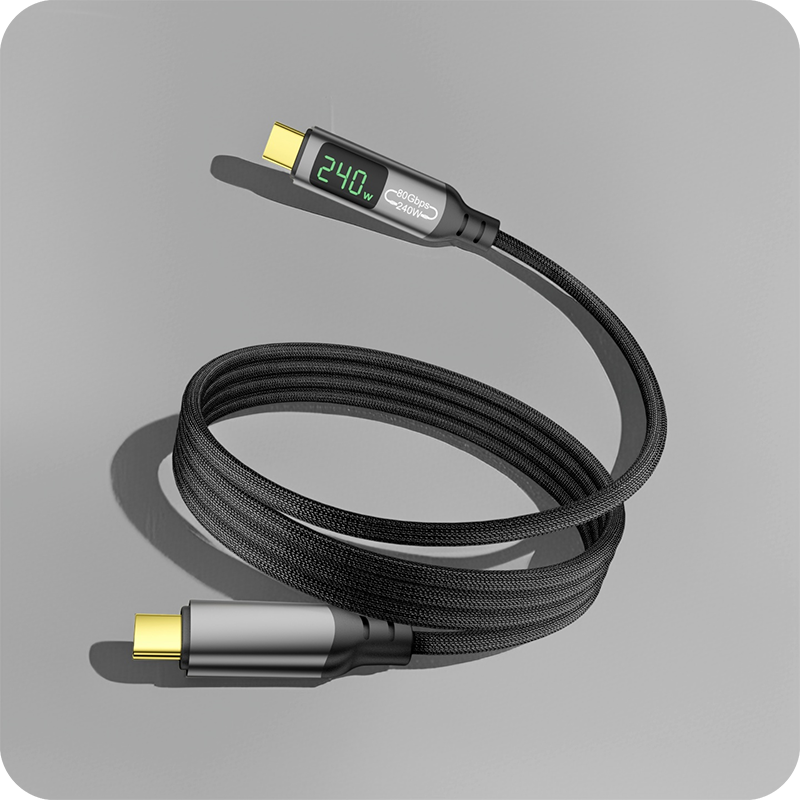
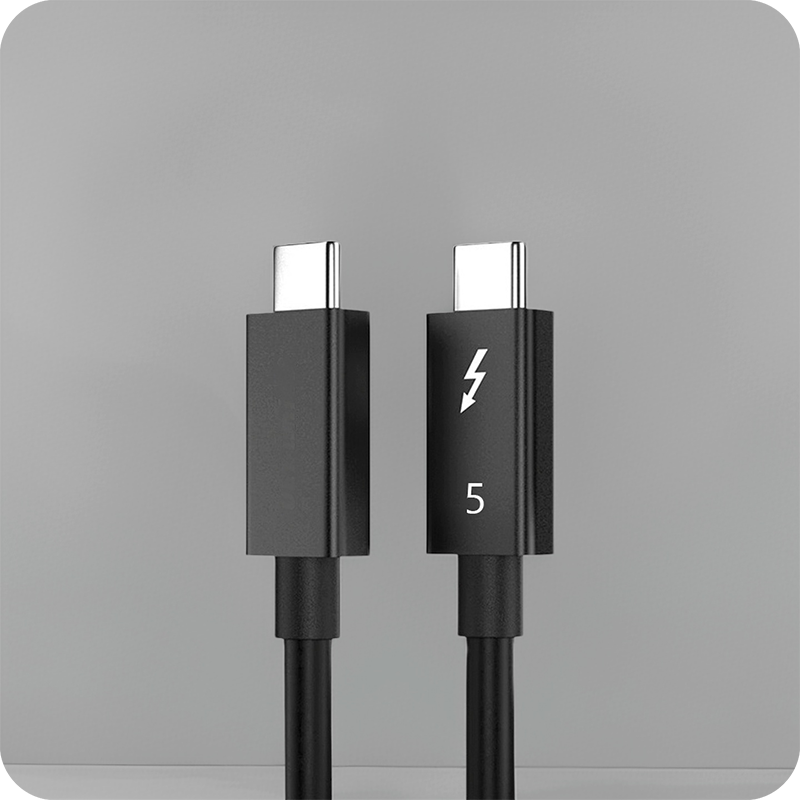
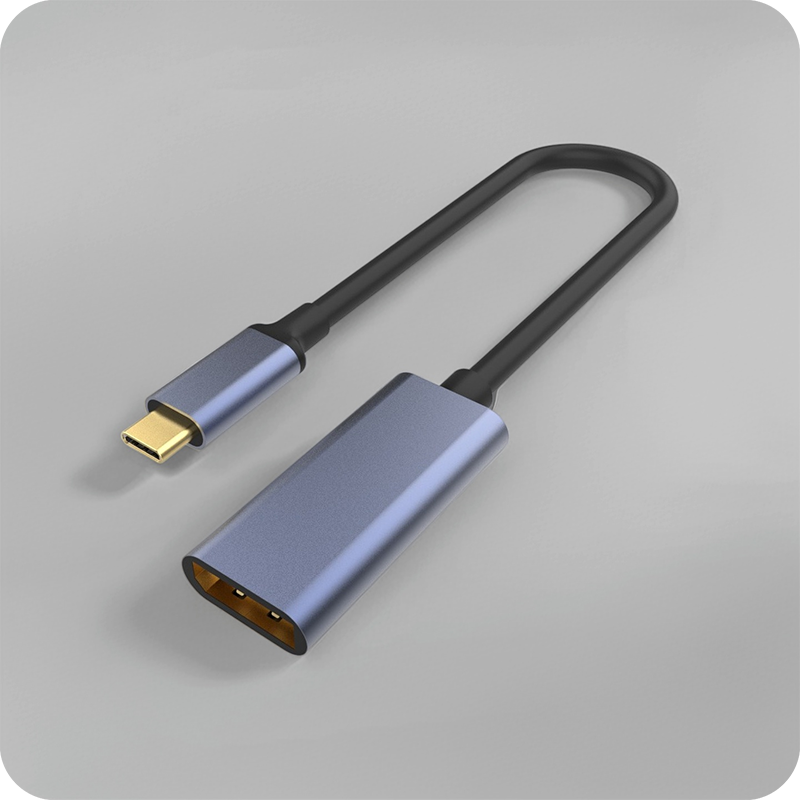
USB-C Cable for KVM Switches: Multi-PC Control
KVM Switches: Multi-Computer Control and Streaming Setup projects usually fail for ordinary reasons: the cable is too long, the bend radius is too tight, the connector is stressed, or the selected data rate does not match the device chain. Panel builders often start from China test notes on passive vs active cables when clearance is tight. A buyer does not need exaggerated claims. What helps is a clear way to match the cable or adapter to the job, confirm the operating conditions, and ask for the right evidence before ordering. For KVM Switch orders, Eilinks Eletronics in China works from the drawing.
KVM switch orders usually start from the drawing and a sample run.
What buyers should confirm first

In a real installation, a USB-C cable may be pulled through furniture, mounted inside a panel, connected behind a display, handled by many users, or left in place for long service periods. Those details matter. A product that works on a desk can still be the wrong choice for kvm switches: multi-computer control and streaming setup if the connector direction, jacket stiffness or length tolerance is not suitable. Anyone planning a batch order should look at our USB 3.2 Gen 2 Type-C keystone first.
If you are comparing options on the USB-C product catalog, start by separating must-have requirements from nice-to-have features. A reliable RFQ usually includes the device type, target speed, charging requirement, length, connector orientation, expected use environment and any OEM packaging or labeling needs. Dongguan Eilinks ships from China, and documents KVM Switch details on the order record.
Selection checklist for KVM Switches: Multi-Computer Control and Streaming Setup
Where reliability is usually decided
The most common problems are not always dramatic.
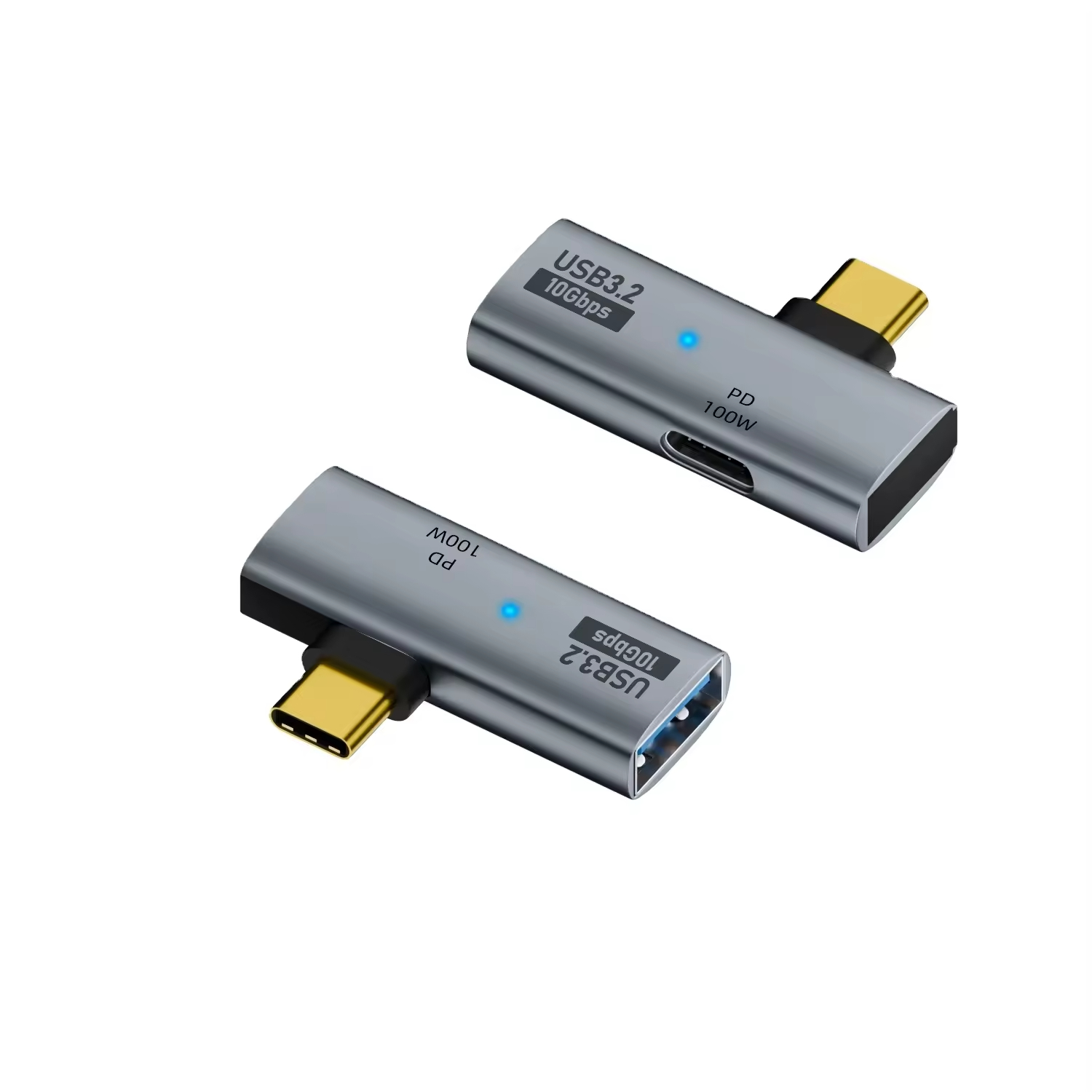
Many failures come from a connector forced into a tight space, a cable bent too sharply, a run longer than the device can tolerate, or a specification copied from a similar project without checking the actual hardware. Our 40G USB-C adapter lists what can be quoted as a moulded assembly at this length.
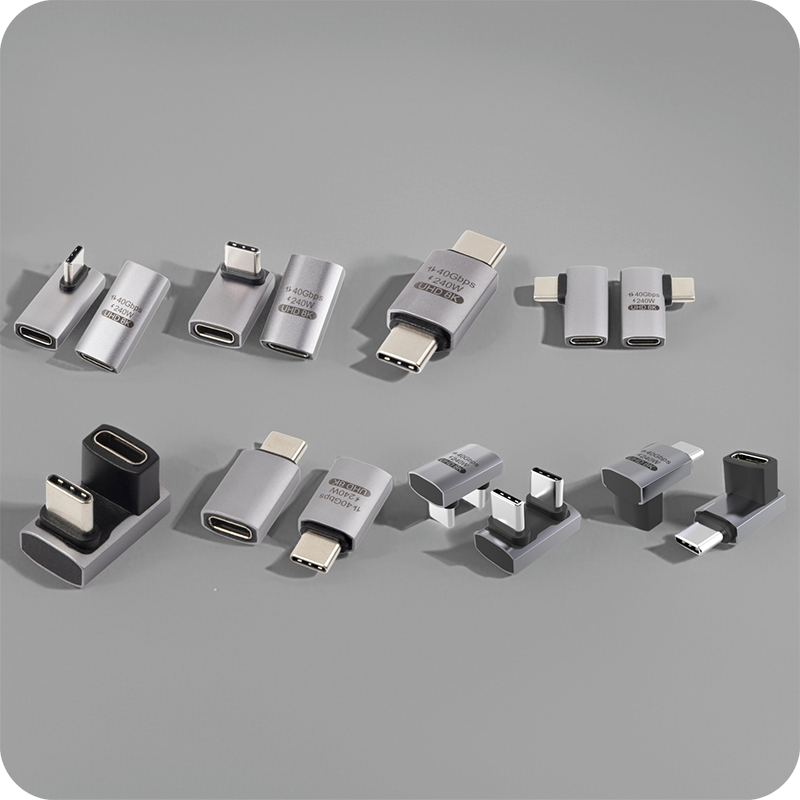
Products such as Double side 20G USB C extension adapter and 240W 20G Type C USB C Female in Moulder Keystone Jack Double side 20G show the type of connector and performance details buyers should review before the final quote. When the application needs another format, compare it with USB3.2 5Gbps USB A To C Female Photography Tools Cable or ask for a recommendation based on the end use. The governing specification is published by the USB Implementers Forum.
Mistakes worth avoiding
Questions to include in the RFQ
- What device or system will this USB-C cable connect?
- What data rate and power level are actually required?
- What length, connector direction and jacket flexibility are needed?
- Will the cable be moved often, fixed inside equipment, or exposed to frequent handling?
- Do you need OEM/ODM details such as color, logo, packaging, connector molding or special length? The comparison behind this section is kept current in PLC USB-C cable manufacturer for control cabinets.
| Item to confirm | Why it matters for buyers |
|---|---|
| Connector and orientation | Confirm USB-C male/female direction, straight or right-angle layout, panel-mount or adapter format, and clearance in the final device. |
| Data requirement | Match the cable to the real device speed instead of buying from a headline number alone. |
| Power requirement | Check expected charging wattage, current path, conductor design and temperature rise. |
| Length and routing | Review total cable length, bend radius, repeated movement, strain relief and routing space. |
| Evidence before bulk order | Ask for specification sheets, drawings when needed, sample approval, packaging details and relevant test information. |
- Write both ends as a pair.
- Name the enclosure the plug must clear.
- Confirm the length at the target rate.
- Approve the sample against the drawing.
Practical sourcing note
A good supplier conversation should be specific. Equipment builders tend to check kiosk USB-C cable before fixing a connector pair. Share the device model if possible, the required length, the desired connector direction, the charging or data expectation, and any installation limits.
| Item | Mistakes worth avoiding |
|---|---|
| 1 | Choosing by price before confirming connector direction and installation space. Eilinks’ build file answers that. |
| 2 | Assuming every USB-C cable supports the same power and data features. |
| 3 | Using consumer desk assumptions for embedded or public-facing installations. |
| 4 | Skipping sample approval before ordering for a new project. |
- Check the port the plug will mate.
- Confirm rear clearance before ordering.
- State whether the run is fixed or moved.
- Record the failed step in writing.
That lets the manufacturer confirm whether a standard item is suitable or whether an OEM/ODM version is a better fit. Most projects contact our technical sales team for RFQ details once the connector pair is fixed.
For a project quotation, review the catalog and then send the application details through the contact page. Keep the first discussion focused on the real operating conditions rather than only the headline speed or wattage. Eilinks in China answers KVM Switch questions from the same inspection sheet that ships with the cable.
