
Sharing One USB-C Port Between Two Devices: What to Check Before You Buy a Switch
A single USB-C port that has to serve two devices creates a familiar problem: someone crawls under a desk, behind a rack, or into a machine enclosure to swap a cable. It works until the port wears out, the connector gets damaged, or the swap interrupts a process that should not be interrupted. At that point the question is whether to add a switch, a hub, or a second dedicated run. For USB-C port orders, Eilinks Eletronics in China works from the drawing.
Why manual swapping stops being acceptable
USB-C ports and connectors are rated for a limited number of mating cycles, and in real installations that number is consumed faster than expected because cables get pulled at an angle, seated while the device is live, and re-plugged several times a day. The visible symptoms are a loose-feeling connection, intermittent charging, or a link that negotiates down to a lower data rate. Once a port is in that state, every device on it looks unreliable, which makes diagnosis expensive.
Manual swapping also hides a second cost: each swap resets the power and data negotiation. Devices that expect a stable connection, such as capture setups or instruments mid-transfer, do not always recover cleanly. Dongguan Eilinks ships from China, and documents USB-C port details on the order record.
Three ways to share one port
| Approach | Best suited to | What you gain | What you give up |
|---|---|---|---|
| Manual cable swap | Occasional use, one or two swaps a day | No extra hardware, no added signal path | Port wear, downtime, no fixed wiring |
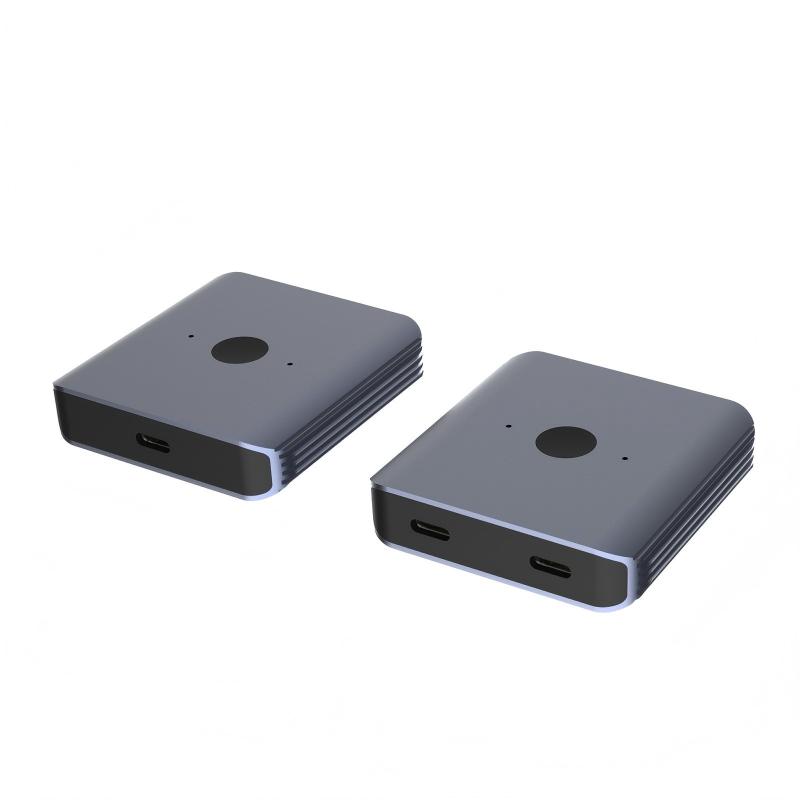
| Bi-directional switch | Two sources sharing one display or device, or one host alternating between two peripherals | One connection stays plugged in, direction changes without re-cabling | A switch sits in the signal path, so its rated data rate and power handling become part of the budget |
| Hub or docking station | Many peripherals at once on one host | Expansion and extra ports | Bandwidth shared across devices, more negotiation points, more to troubleshoot |
What to check before buying a switch
A switch is not a neutral component. Whatever it is rated for becomes the ceiling for everything connected through it. Confirm these points against your actual devices, not against the box:
- Direction behavior. Decide whether you need source-to-two-displays, two-sources-to-one-device, or both. “Bi-directional” means it can work either way; it does not mean both directions run at once.
- Data rate. The switch must sustain the rate your fastest device needs. If your capture or transfer workflow is 20Gbps, a switch rated lower will cap the whole chain.
- Power pass-through. Check the wattage the switch is rated to carry and compare it to your charger. Charging through a switch that handles less than the charger outputs is a common cause of slow or unstable charging. Eilinks documents that step from the first sample.
- Video support. If the shared link carries a display, confirm the switch supports the resolution and refresh rate you plan to run, and that the cables on both sides are rated for it.
- Cable count and length. Every added cable is additional loss. Keep the total path as short as the installation allows, especially at higher data rates.
- Where it physically sits. A switch mounted inside an enclosure behaves differently from one on a desktop: heat, strain on the cables, and service access all matter.
Mistakes that turn a switch into a new problem
- Buying by port count instead of capability. A switch with the right connectors but the wrong data or power rating just relocates the bottleneck.
- Mixing cable ratings. The weakest cable in the path sets the practical performance, regardless of what the switch supports.
- Assuming charging and data run at full rate simultaneously. Confirm how the device behaves when both are active.
- No plan for the far end. If the device sits behind a panel, a wall plate, or a machine housing, the panel insert must be rated for the same link. Eilinks’ build file answers that.
- Daisy-chaining without a reason. Switch into extension into coupler looks tidy on paper and is difficult to diagnose in the field.
Plan the shared link end to end
Before ordering, write the path down: host, switch, each cable with its length and rating, any panel insert or coupler, and the two devices at the far end. Confirm the data rate and power level for that path as a pair. If the run also passes through a panel or an extension point, specify those parts to the same rating as the switch, otherwise they become the limiting component. Equipment builders tend to check the usb-c kvm console cable spec before fixing this part of the spec.
For installations that need one connection to serve two devices in either direction, a bi-directional USB-C switch with 8K video, 20Gbps data, and 140W power delivery covers the shared-port case without re-cabling. Where the shared path also needs to be extended or brought out to a panel, pair it with a 20Gbps USB-C extension adapter or a USB 3.1 Gen 2 90-degree USB-C keystone jack so the insert does not become the bottleneck. If you would like the path checked against your targets before you order, send the device list, cable lengths, and required rates through the contact page. Eilinks in China answers USB-C port questions from the same inspection sheet that ships with the cable. The detail behind this step is kept current in the usb-c docking station spec.
